 SkylitDocsGet Skylit
 Get pictures onto the frame
Choose a shared album or receive pictures through a dedicated Gmail inbox.
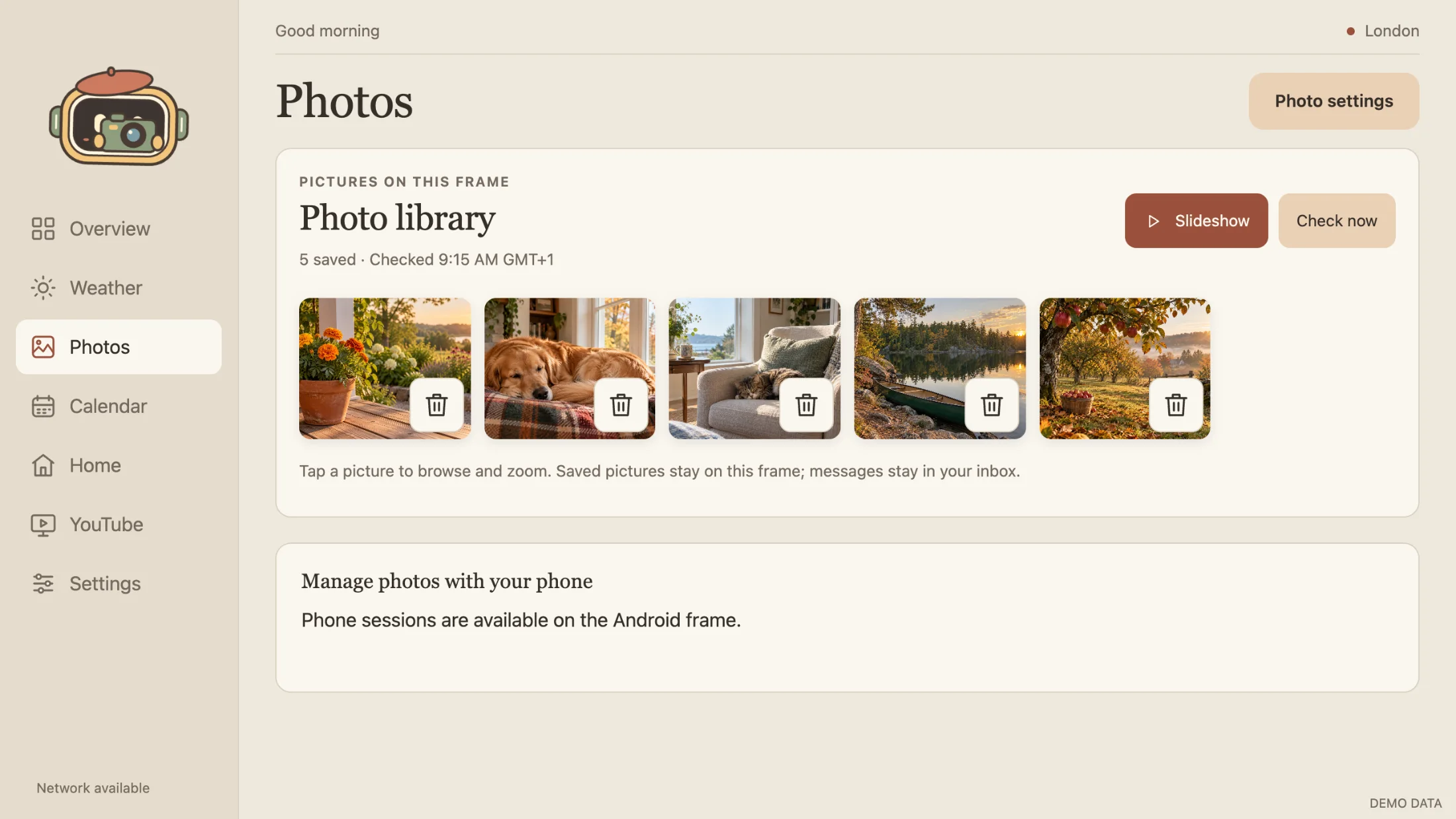
Receive pictures by email
- Use a dedicated Gmail account for frame pictures. Enable Google 2-Step Verification and create an app password on a trusted computer or phone. Some account policies do not offer app passwords.
- On the frame, open Settings → Photos → Receiving photos → Pictures on this frame → Connect or change Gmail account. Enter the account and app password there.
- Choose Connect and check mail, then send a picture to that inbox. Wait for an imported picture or a specific error.
- Open Photos, use Check now if needed, then open the picture and start a slideshow. Confirm the picture advances.
Storage and removal
Skylit reads the inbox over encrypted IMAP. It keeps a bounded private cache, not mail bodies. Saved pictures remain playable offline. Storage & retention controls which pictures stay; Keepers have a separate bounded budget.
Disconnect email and erase saved pictures removes the local credential and photo cache. Revoke the app password in your Google Account too. Changing accounts or erasing the cache also clears local photo choices and exclusions.